System crash analysis (BSOD)
We'll analyze the "minidumps" in your blue screens and help you resolve your system crashes.
Discover our other tools to stabilize and optimize your PC
Driver detection and download
Component and software detection
Hardware health of your PC
New
Service preview
DriversCloud.com
Detection of your hardware and software configuration
Install our detection agent to display your configuration in detail. Here's how the 3 steps work.
Installing the detection agent
Click on the "Start detection" button below and follow the instructions.
Detecting your configuration
Once the agent has been installed, you will be prompted to start detecting your configuration. Accept and continue.
View your configuration
Once detection is complete, a web page will open listing all the components and software on your Windows PC.
v
i
Agent installation information
A manual installation is sometimes necessary. This action is optional, and will be useful in the following cases:
Installation failed during automatic detection
Installation on a machine other than this one
Use in offline mode
i
Privacy information
Your privacy is our priority: here are the rules DriversCloud applies to protect your information.
Offline detection
Have you already carried out a detection in offline mode?
You can consult your previous detections at any time. Your configuration file .dc must be uploaded either by drag & drop to this area, or via the button opposite.
They trust us

Géneration NT
Géneration NT about us
How do you find and install a driver to run an undetected peripheral on your computer?

MALEKAL
MALEKAL about us
DriversCloud: identify hardware and install Windows drivers 11/10


Clubic
Clubic about us
Drivers Cloud, the website that updates your hardware drivers, has a new look


Lifewire
Lifewire about us
A full review of DriversCloud, including how to use this free driver updater tool to get drivers directly from the manufacturer
What is a Blue Screen of Death (BSOD)?
This is the unexpected display of a blue screen indicating that a critical system error has occurred. It usually occurs after the installation of a bad driver, or a hardware defect, or after the installation of software incompatible with your version of Windows - the causes can be multiple. As a precaution, the operating system then proceeds to a total shutdown of all current activities, in order to avoid aggravating the current problem, whether hardware or software. Technical information is then displayed on this famous blue screen, giving some indication of the symptoms and suggesting ways of resolving the incident.
How to diagnose and repair a blue screen?
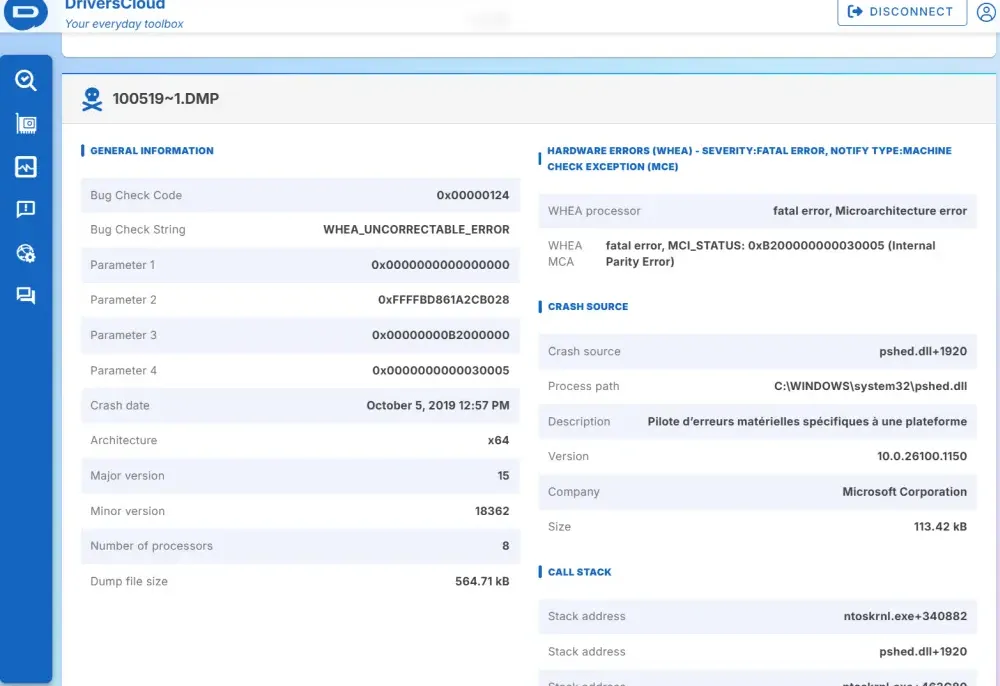
When a blue screen occurs, a restart is mandatory, but sometimes this is all it takes to get your computer back to normal. If your computer refuses to start Windows, you need to find out what's causing the malfunction and try to repair the system. Numerous tools of varying degrees of complexity exist, but they often require a great deal of technical knowledge. DriversCloud.com treats this problem at source, by recovering the so-called "mini-dump" files that are automatically generated following a crash. These files are analyzed in depth to identify the source of the problem.
Precautions to take before embarking on a repair project
Whether you're attempting a repair using non-DriversCloud tools, or DriversCloud's own, it's always a good idea to have a recent backup of your system, or at the very least your data. Get ahead of the game and make regular backups before malfunctions occur. If you don't have backups and you're faced with a recalcitrant blue screen, all is not lost. Generally speaking, your data is still there, and in 99% of cases, intact. If your data is precious, you always have the option of reinstalling Windows on a new hard disk, having first taken care to remove the old hard disk from the computer. Once your new Windows installation is up and running, you can then reconnect your old hard disk to try to recover your data. This is a tedious and potentially dangerous operation, so don't venture into uncharted territory if you don't understand what you're doing.